Auto-Enhancing Photos with iPhone Photos App
How to use the auto-enhancement feature in iPhone Photos app?
✍: FYIcenter.com
 Auto-enhancement feature will instantly improve your photo exposure, contrast, saturation, and other qualities.
It's the fastest way to take your photo from average to amazing like a magic.
You can use the auto-enhancement feature in iPhone Photos app
using these steps:
Auto-enhancement feature will instantly improve your photo exposure, contrast, saturation, and other qualities.
It's the fastest way to take your photo from average to amazing like a magic.
You can use the auto-enhancement feature in iPhone Photos app
using these steps:
1. Open Photos app and tap on "Albums" near the bottom of the screen. You see your photos listed in different albums.
2. Tap on "Camera Roll" to open the camera roll. You see a list of photo previews displayed.
3. Tap the photo you want to enhance. You see the photo displayed in full size.
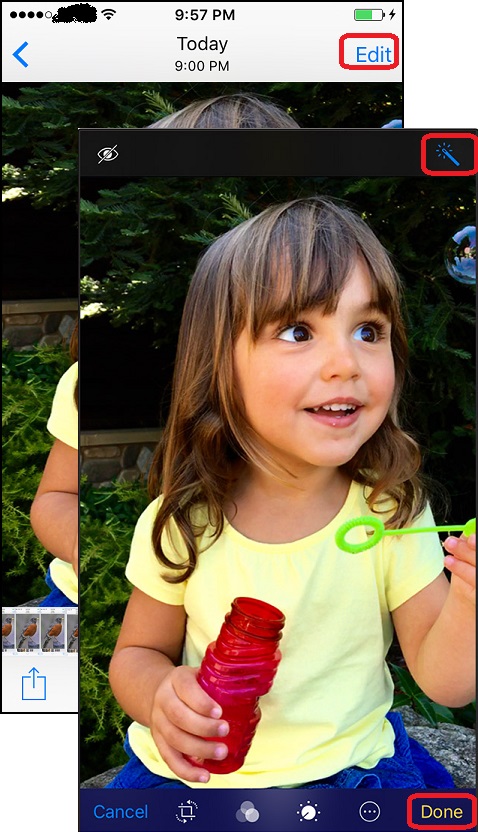
4. Tap "Edit" near the top right corner of the screen. You see some editing icons displayed.
5. Tap the auto-enhance icon (a magic touch) near the top right corner of the screen.
 You see the photo enhanced immediately.
6. Tap "Done" near the bottom right corner of the screen to save the change.
The picture below shows you how to automatically enhance photos in Photos app
on your iPhone (source: apple.com):
⇒ Removing Red Eyes with iPhone Photos App
⇐ Editing Photos with iPhone Photos App
2017-07-07, ∼4453🔥, 0💬
Related Topics:
