Transfer Files over USB Connection
How to Transfer Files over USB Connections?
✍: FYIcenter.com
 You can transfer photos and other files from your Motorola phone
using the USB connection as shown below:
You can transfer photos and other files from your Motorola phone
using the USB connection as shown below:
1. Install Android File Transfer on your computer.
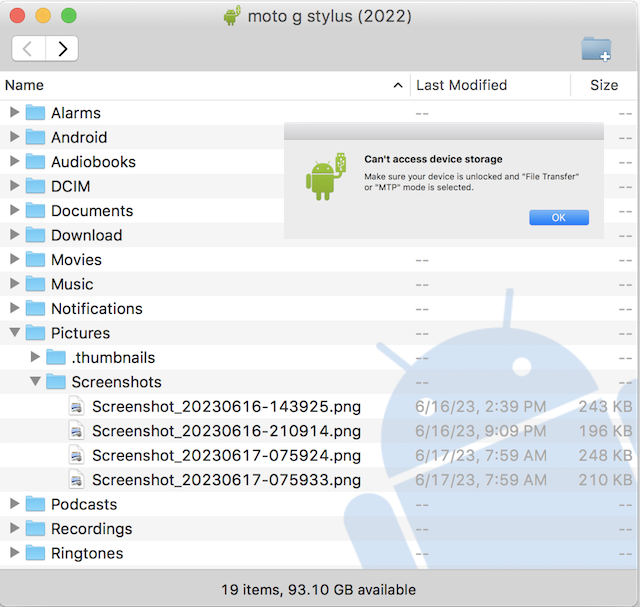
2. Connect your Motorola phone to your computer with a USB cable. You see the following message on your computer to prompt you taking actions on your phone:
Can't access device storage

Make sure your device is unlocked and "File Transfer"
on "MTP" mode is selected.

[OK]
3. Unlock your phone. You see the following message:
Select USB Mode

[File Transfer]
[Photo & video transfer]

USB Charging is on
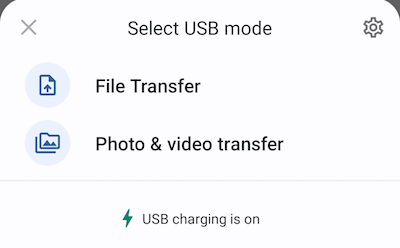
4. Tap on "File Transfer" to allow the computer to transfer files.
5. Go back to your computer. You see "Android File Transfer" displays folders and files from your phone's storage device.
6. You can select and drag files from "Android File Transfer" window to your computer folders.
⇐ USB Connection of Motorola Phone
2023-07-01, ∼6256🔥, 0💬
Related Topics: