LG Phone USB Connection for File Transfer
How to connect LG phone with Windows computer using USB cable in File Transfer mode?
✍: FYIcenter.com
 By default, you LG phone is using the USB cable to charge the battery.
If you want to exchange files between your phone and your Windows,
you need to set the USB connection in File Transfer mode
as shown in this tutorial:
By default, you LG phone is using the USB cable to charge the battery.
If you want to exchange files between your phone and your Windows,
you need to set the USB connection in File Transfer mode
as shown in this tutorial:
1. Connect your LG phone to your Windows computer with a USB cable.
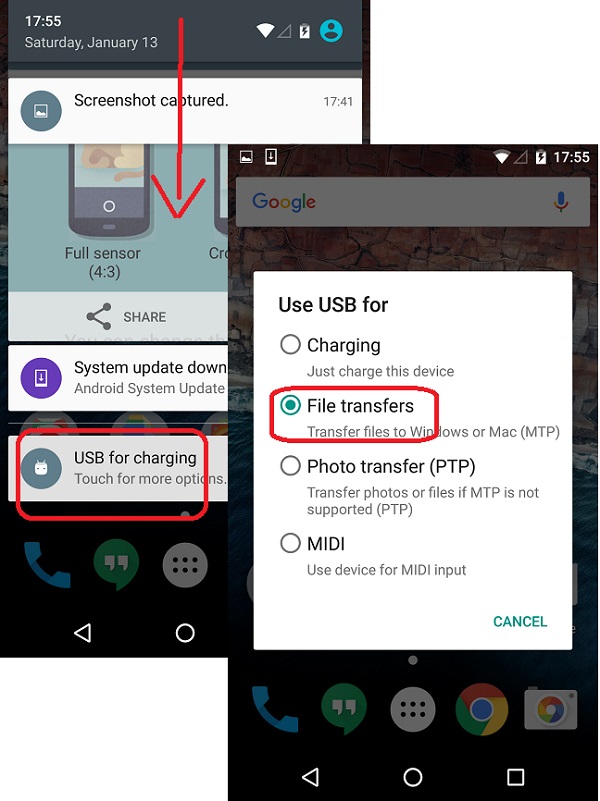
2. Touch, hold and drag the status bar on the top of the phone screen to open the pull-down menu. You see the "USB for charging" option.
3. Tap "Touch for more options" below the "USB for charging" option. You see more USB options.
4. Tap the "File transfers - Transfer files to Windows or Mac (MTP)" option. Now your phone is ready for file transfer.
The following picture shows you how to connect LG phone
to computer with USB cable for file transfer:
⇒ Windows AutoPlay for LG Phone USB Connection
⇐ Connecting LG Phone to Windows
2023-05-29, ∼4757🔥, 1💬
