Start and Sign in iCloud for macOS
Q
How to start iCloud for macOS? Do I need to download it first?
✍: FYIcenter.com
A
 No, you don't need to download iCloud for macOS. It is already
included in your macOS system.
You can follow these steps to start using iCloud for macOS.
No, you don't need to download iCloud for macOS. It is already
included in your macOS system.
You can follow these steps to start using iCloud for macOS.
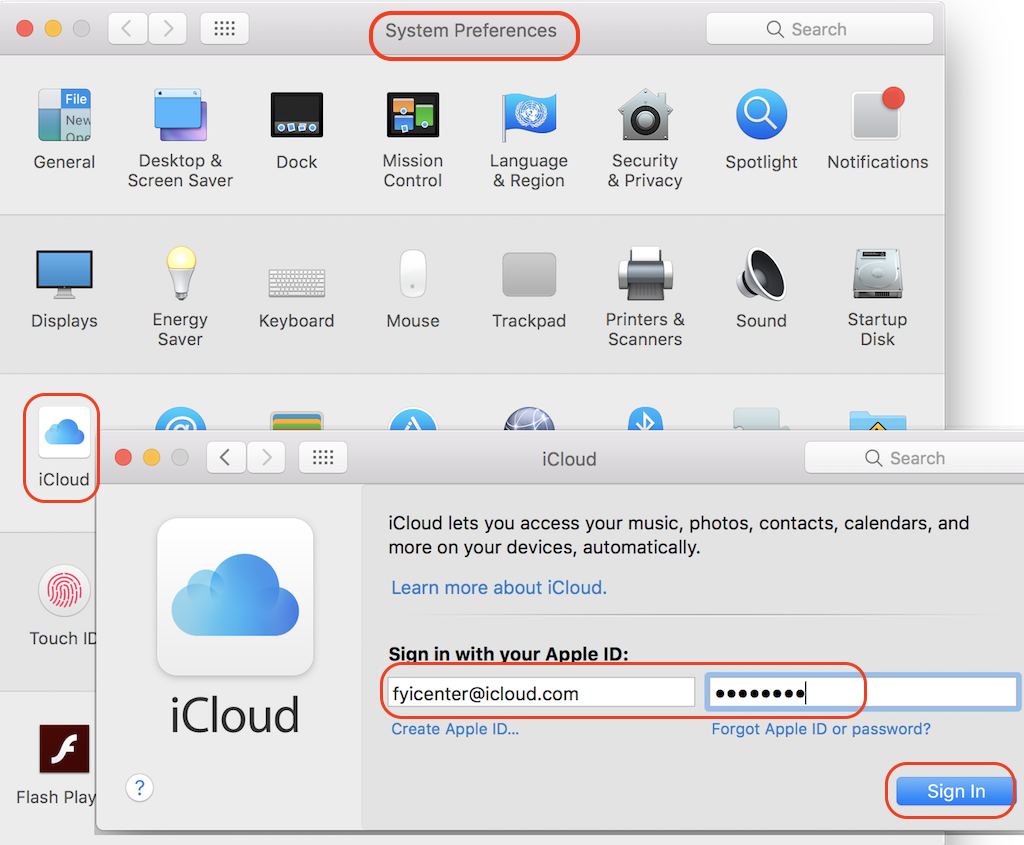
1. Start "System Preferences" and click "iCloud". On some older macOS computers, click "Apple ID" instead of "iCloud". You see the iCloud login screen.
2. Enter your Apple ID and password, and click "Sign in".
3. Enter the verification code or security question answers, if prompted.
4. Wait for the sign process to finish.
iCloud for macOS is ready to now.
The picture below shows you how to sign in with iCloud for macOS:
2021-04-30, ∼3044🔥, 0💬
Related Topics:


