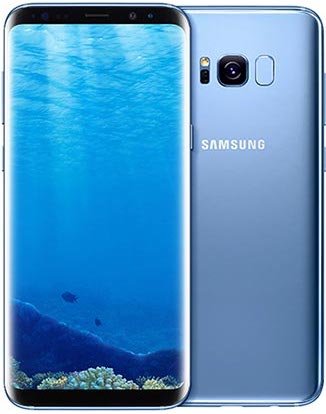
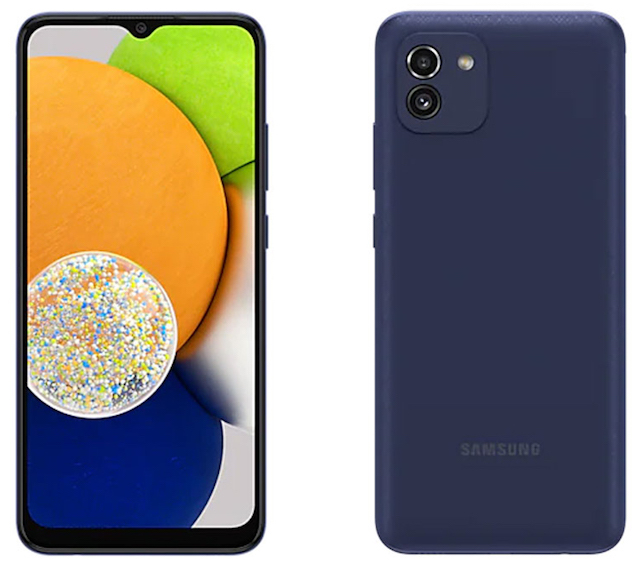
Apps Screen on Samsung Galaxy Phone
How to organize apps screen on Samsung Galaxy Phone?
✍: FYIcenter.com
 Apps screen is the second most important
screen on your Samsung Galaxy phone after the Home screen.
Apps screen is the second most important
screen on your Samsung Galaxy phone after the Home screen.
Here are some tips on how to find and organize the Apps screen:
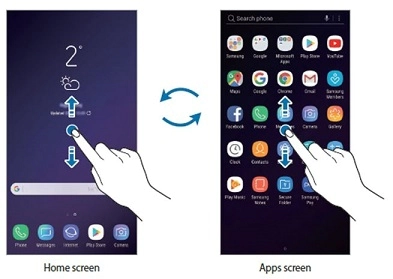
1. By default, Apps screen is located below the Home screen. To switch from Home screen to Apps screen, touch the screen and swipe upward. To switch from Apps screen to Home screen, touch the screen and swipe downward.
2. Pub most frequently used apps on the Home screen, to reduce chances of going the Apps screen.
3. Divid apps into multiple windows, which are listed horizontally.
3. Put more frequently used apps on the first window.
4. Put related apps together in an app folder.
5. Uninstall apps you have not used for a years.
⇒ Search for an App on Samsung Galaxy
⇐ Home Screen on Samsung Galaxy Phone
2022-10-26, ∼2061🔥, 0💬
Related Topics:

💬 2025-09-20 FYIcenter.com: @Mike, We will add it later.
💬 2025-09-17 Mike Cahill: Why on earth is there no check mark icon in the text section?