Using iPhone Camera HDR Feature
How to use HDR (High Dynamic Range) feature on my iPhone camera?
✍: FYIcenter.com
 When taking photos of standing still or slow moving subjects,
you should always using the HDR (High Dynamic Range) feature on your iPhone Camera
by following these steps:
When taking photos of standing still or slow moving subjects,
you should always using the HDR (High Dynamic Range) feature on your iPhone Camera
by following these steps:
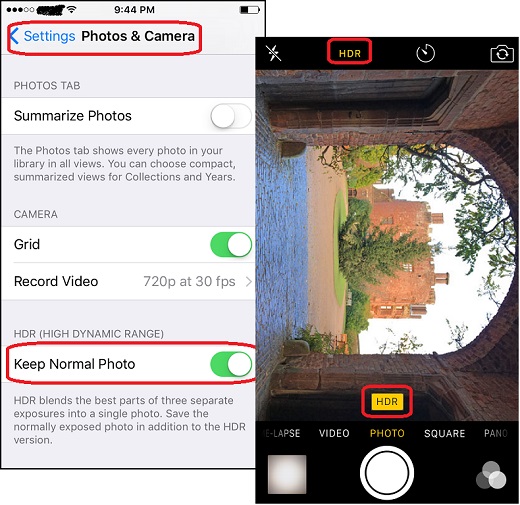
1. Tap on "Settings > Photos & Camera".
2. Read the message in "HDR (HIGH DYNAMIC RANGE)" section near the bottom:
HDR blends the best parts of three separate exposures into a single photo.
Save the normally exposed photo in addition to the HDR version.
3. Tap on "Keep Normal Photo" switch to turn it on. This tells the camera to keep the normal photo together with the HDR photo. You can compare them, decide which one is better and delete the other.
4. Open up the camera and tap on "HDR" on the top of the screen. The HDR yellow indicator displayed on the screen.
5. Take a photo of the castle from inside a gate.
6. Open up "Photos" app. You see two new photos saved. The one marked with "HDR" at the top left corner is the HDR photo.
The picture below shows you how to turn on the setting to
save the normal photo with HDR photo and using the HDR feature
when taking photos:
⇒ iPhone Camera Built-in Color Filters
2017-05-05, ∼4072🔥, 0💬
Related Topics: