Start and Setup iCloud for Windows
How to start iCloud for Windows? I have installed it on my Windows PC.
✍: FYIcenter.com
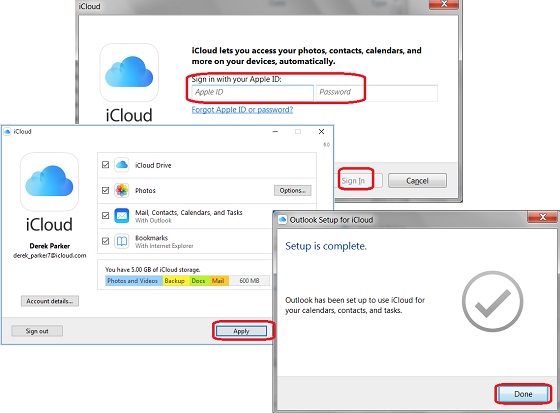
 To start iCloud for Windows and login to your iCloud account,
you can follow these steps:
To start iCloud for Windows and login to your iCloud account,
you can follow these steps:
1. Type in "iCloud" in the program search box.
2. Select "iCloud" in the matched program list. You see the iCloud login screen.
3. Enter your Apple ID and password, and click "Sign in".
4. Enter the verification code or security question answers, if prompted.
5. Wait for the sign process to finish. You see your iCloud for Windows setup screen, if this is your first time login.
6. Click "Apply" with default setup options and wait for the setup to finish.
7. Click "Done" and "Close" to close the setup screens.
iCloud for Windows is running in the background now.
The picture below shows you how to start and setup iCloud for Windows and login:
⇒ Background Processes of iCloud for Windows
2017-08-13, ∼2917🔥, 0💬
Related Topics: