Change Wi-Fi Network Settings on iPhone
How to change Wi-Fi network settings on my iPhone? I want to have fixed IP address.
✍: FYIcenter.com
 When you connect to a Wi-Fi network, your iPhone will use default settings
like dynamically obtaining the IP address.
When you connect to a Wi-Fi network, your iPhone will use default settings
like dynamically obtaining the IP address.
But you change those Wi-Fi network settings by following these steps.
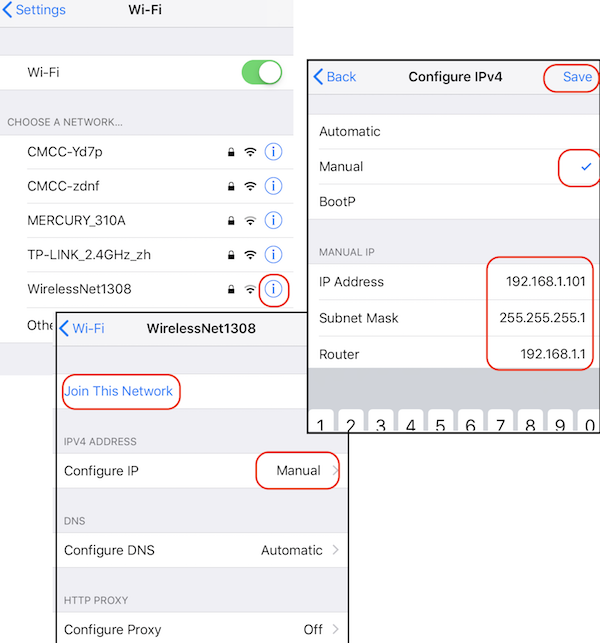
1. Go to "Settings > Wi-Fi". You see a list of available Wi-Fi networks.
2. Tap on "info" icon at the end of the network name you want to change. You see Wi-Fi network detail settings.
Configure IP        Automatic
Configure DNS       Automatic
Configure Proxy     Off
3. Tap on "Configure IP - Automatic" to change it. You see 3 options:
Automatic
Manual          check
BootP
4. Tap on "Manual" to select it. You see manual setting details.
5. Enter your fixed IP address and other information:
ID Address      192.168.1.101
Subnet Mask     255.255.255.0
Router          192.168.1.0
6. Tap on "Save" to save the changes.
7. Tap on "Join This Network". In a few seconds, your iPhone will be connected to this Wi-Fi network with a fixed IP address.
The picture below shows you how to turn on and off Wi-Fi on your iPhone:
⇒ Some Wi-Fi Networks Require Registration
2020-04-14, ∼3085🔥, 0💬
Related Topics:

