Manage Apps not Purchased by You on iPad
How to manage apps that were not purchased with my Apple ID?
✍: FYIcenter.com
 If you bought a used iPad, you may see apps that were purchased
by the previous owner. You can follow these steps to manage them.
If you bought a used iPad, you may see apps that were purchased
by the previous owner. You can follow these steps to manage them.
1. Identify apps that were not purchased by you. There is no easy way to view who is the purchaser of an app in your iPad.
However, you know an app is not purchased by you, if it is not in your "Purchased" list by tapping "App Store > Account > Purchased".
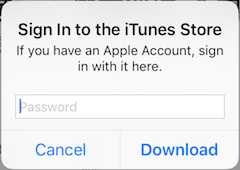
2. Update apps that were not purchased by you. When you try to update an app in App Store, it will prompt you to enter the password of the original purchaser's Apple ID, if the app's purchaser dose not match the one in iPad's settings. So there is no way to update it.
3. Delete apps that were not purchased by you. Go to "Settings > General > iPad Storage" and open the app. Then tap the "Delete App" to delete it, even it was not purchased by you.
2026-03-22, ∼1835🔥, 0💬
Related Topics: