Upgrading iPhone Software Version with iTunes
How to update my iPhone software with iTunes from my Windows computer?
✍: FYIcenter.com

To upgrade your iPhone software version with iTunes on Windows computer, follow these steps:
1. Connect your iPhone with your computer with the USB cable.
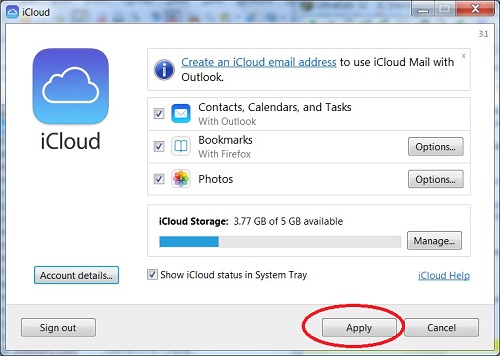
2. Back up your personal data from iPhone to iCloud
3. If there is a newer version of your iPhone software available, you will get the following message when you start iTunes on your Windows computer.
A new iPhone software version (8.3) is available for the iPhone.
Would you like to download it and update your iPhone now?

iTunes will verify the software update with Apple.
4. Click the "Download and Update" button. iPhone Software Update screen shows up.
5. Click "Next" and follow intruction to start the download and upgrade process.
6. Wait for the process to finish. I may take 3 or 4 hours depending on your Internet speed. Keep your iPhone connected during the upgrade process.
2015-05-21, ∼2455🔥, 0💬
Related Topics: