Import Pictures from LG Phone to Windows
How to Import Pictures from LG Phone to my Windows computer?
✍: FYIcenter.com
 You can follow this tutorial to learn how to
Import Pictures from LG Phone to my Windows computer:
You can follow this tutorial to learn how to
Import Pictures from LG Phone to my Windows computer:
1. Connect your LG phone to your Windows computer with a USB cable.
2. Make sure the USB connection is set to file transfer mode as shown in the previous tutorial.
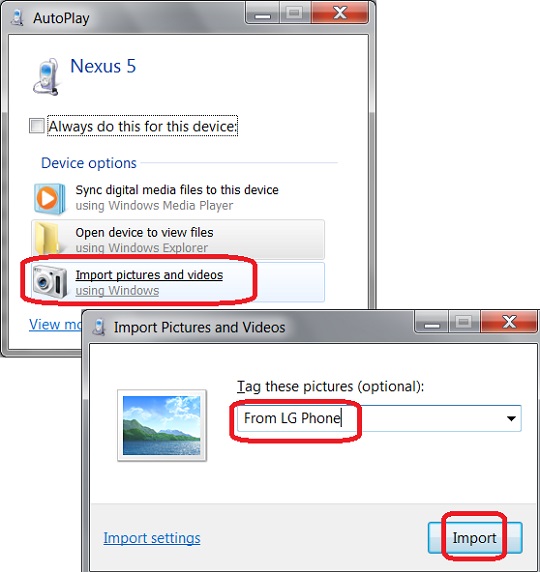
3. On your Windows computer, you see the AutoPlay interface:
4. Click "Import pictures and videos". You see the "Import pictures and videos" window.
5. Enter a short description like "From LG Phone" to tag those imported pictures. And click the "Import" button. You see pictures are transferred from your LG phone to your Windows computer.
6. View imported pictures at this folder: "C:\Users\{userid}\Pictures\2018-01-13 From LG Phone".
The following picture shows you how to
Import Pictures from LG Phone to my Windows computer:
⇒ Import Pictures from LG Phone Not Working
⇐ Transfer Screenshots from LG Phone to Windows
2018-02-08, ∼3731🔥, 0💬

