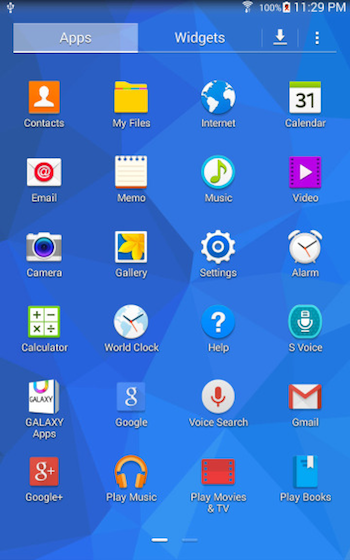
Apps Screen on Samsung Galaxy Tablet
How to organize apps screen on Samsung Galaxy Tablet?
✍: FYIcenter.com
 Apps screen is the second most important
screen on your Samsung Galaxy Tablet after the Home screen.
Apps screen is the second most important
screen on your Samsung Galaxy Tablet after the Home screen.
Here are some tips on how to find and organize the Apps screen:
1. To switch from Home screen to Apps screen, tap the "Apps" icon on the Home screen. To switch from Apps screen to Home screen, press the "Home" button near the bottom of the tablet.
2. Pub most frequently used apps on the Home screen, to reduce chances of going the Apps screen.
3. Divid apps into multiple windows, which are listed horizontally.
3. Put more frequently used apps on the first window.
4. Put related apps together in an app folder.
5. Uninstall apps you have not used for a years.
⇒ Operating Your Samsung Galaxy Tablet
⇐ Home Screen on Samsung Galaxy Tablet
2023-02-03, ∼2076🔥, 0💬
Related Topics:

